Book Appointment Now
Upload M3U Playlist to Flix IPTV: 2026 Setup Guide
How to Upload M3U Playlist to Flix IPTV Without the Headache
Most people who attempt to upload M3U playlist to Flix IPTV for the first time walk away frustrated. Not because the process is hard, it isn’t, but because a single wrong character in a URL, a stale playlist link, or a misunderstood input field can turn what should be a two-minute task into an hour-long headache. And if you’re a UK IPTV reseller handing playlist links to dozens of subscribers, those small errors multiply into support tickets that eat your entire evening.
This guide strips the process down to exactly what works. No vague screenshots of menus that have already changed. No recycled instructions from 2021 that reference deprecated app versions. If you want to upload M3U playlist to Flix IPTV in 2026, on a Firestick, Android box, smart TV, or phone, everything you need is below.
What Actually Is an M3U Playlist (And Why Flix IPTV Uses It)
Before you upload M3U playlist to Flix IPTV, it helps to understand what the app is doing with that link behind the scenes.
An M3U file is a plain-text playlist format. It contains a structured list of channel URLs, each one pointing to an HLS or MPEG-TS stream hosted on a remote server. When Flix IPTV parses this file, it reads each entry, organizes channels by group tags embedded in the file, and pulls the EPG data separately if you’ve added a guide URL.
The key distinction: Flix IPTV doesn’t download your content. It reads the M3U as an index and then connects to each stream on demand. That’s why a broken link inside the playlist doesn’t crash the app, it just shows a dead channel. And that’s also why your M3U source quality matters far more than the app itself.
Pro Tip: If your provider gives you both an M3U URL and Xtream Codes API credentials, always test the M3U URL method first on Flix IPTV. The M3U parser in Flix tends to handle group sorting more reliably than the API integration, particularly with providers running XUI panels.
Flix IPTV Device Activation: The Step Everyone Skips
Here’s where most first-timers get stuck. You cannot upload M3U playlist to Flix IPTV until you’ve activated your device through the Flix IPTV web portal. The app itself won’t accept any playlist input until activation is complete.
How device activation works:
- Install Flix IPTV from your device’s app store (Amazon Appstore for Firestick, Google Play for Android TV, or the native store on Samsung/LG smart TVs)
- Open the app and note the MAC address displayed on screen
- Visit the Flix IPTV website from any browser
- Enter your device’s MAC address in the activation portal
- The app now unlocks playlist management through the web dashboard
This web-based approach is what separates Flix from apps like IPTV Smarters or TiviMate. You don’t paste URLs directly into the app. You manage everything remotely through the browser portal, and the app pulls your configuration from there. Here’s how that compares to the more familiar apps:
| Feature | Flix IPTV | IPTV Smarters | TiviMate |
|---|---|---|---|
| Playlist input method | Web portal (MAC-based) | In-app direct entry | In-app direct entry |
| M3U URL support | Yes | Yes | Yes |
| Xtream Codes support | Yes | Yes | Yes |
| EPG handled separately | Yes | Bundled | Separate |
| Remote playlist management | Yes (browser) | No | No (premium only) |
This remote management model is actually an advantage for resellers. When a subscriber needs their playlist URL updated, you don’t need to walk them through in-app menus. You log in, swap the URL, and the app refreshes on their end. That alone cuts your support burden significantly when you upload M3U playlist to Flix IPTV across multiple households.
The Actual Upload Process: No Padding, No Filler
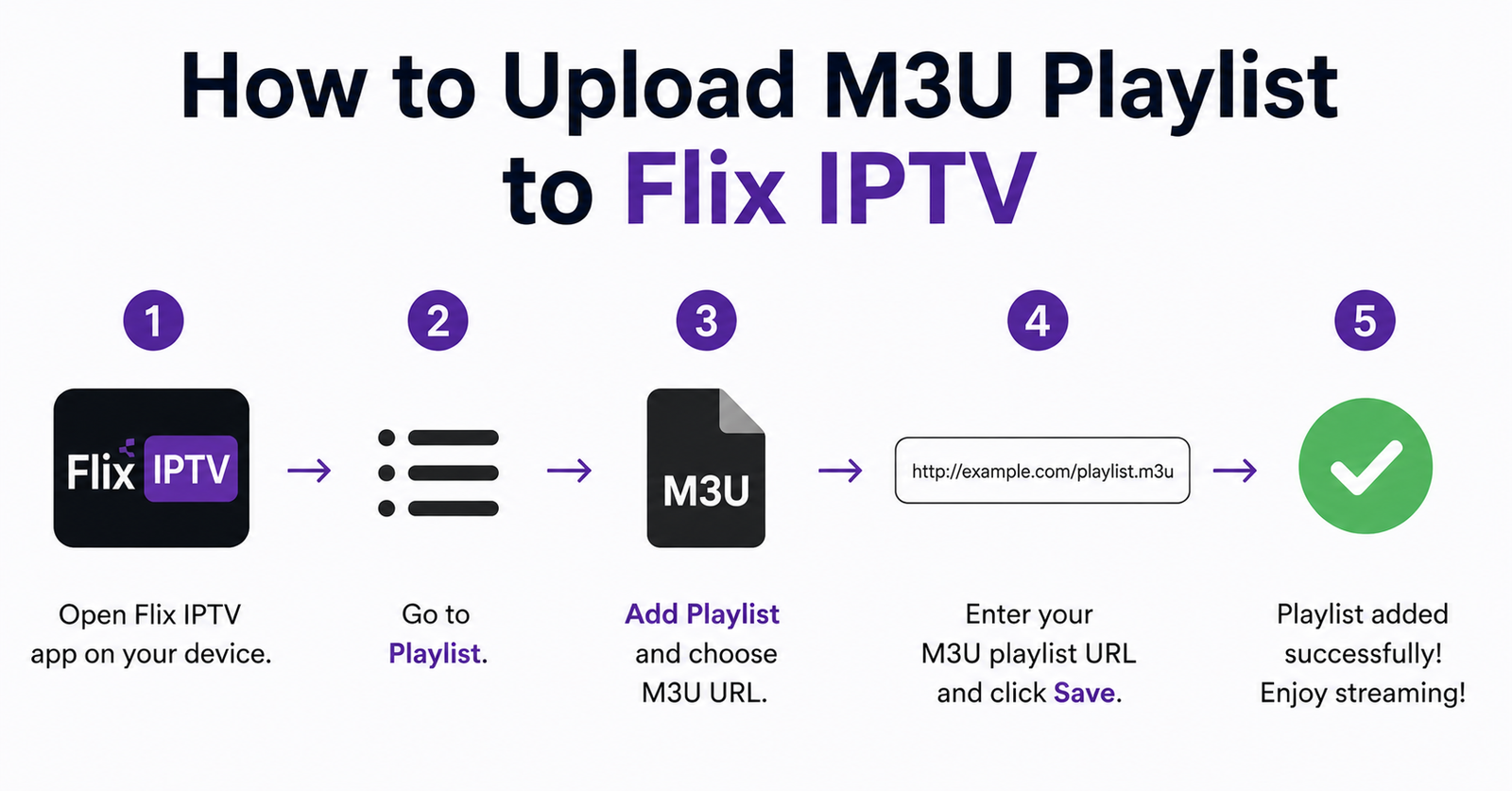
Once your device is activated, here’s the exact sequence to upload M3U playlist to Flix IPTV through the web dashboard.
Step 1: Log into the Flix IPTV portal using your device MAC address.
Step 2: Locate the playlist management section. You’ll see fields for M3U URL and EPG URL.
Step 3: Paste your full M3U URL into the playlist field. This URL typically looks something like: http://provider-domain.com:port/get.php?username=XXX&password=XXX&type=m3u_plus&output=ts
Step 4: If your provider supplies a separate EPG guide URL (usually ending in .xml or .xml.gz), paste that into the EPG field.
Step 5: Save and restart the Flix IPTV app on your device.
Step 6: Wait for the channel list to populate. On large playlists (10,000+ channels), this initial load can take 60 to 90 seconds depending on your internet speed and the provider’s server response time.
That’s it. Six steps. When you upload M3U playlist to Flix IPTV correctly, channels should appear grouped by category exactly as they’re tagged in the M3U file.
Pro Tip: Always append &output=ts to your M3U URL if your provider supports it. The TS output format tends to produce fewer playback hiccups on Flix IPTV compared to HLS on lower-powered devices like older Firesticks.
When Channels Load But Nothing Plays: Diagnosing Stream Failures
You’ve managed to upload M3U playlist to Flix IPTV, channels are listed, but tapping on them gives you a black screen or an endless loading spinner. This is the single most common complaint, and it almost never has anything to do with the Flix app itself.
The usual culprits:
- Your ISP is throttling or blocking the stream server’s IP range. This has become far more aggressive through 2025 and into 2026, with AI-driven deep packet inspection systems identifying IPTV traffic patterns even on encrypted connections.
- The M3U URL is valid, but individual channel streams within it are down. Providers rotate servers, and not every channel endpoint gets updated simultaneously.
- DNS poisoning at the ISP level is redirecting your stream requests. If you’re using your ISP’s default DNS servers, switch to a neutral option immediately.
- The playlist was generated for a different output format than what Flix IPTV expects. Some providers default to HLS output, which can cause buffering on devices that handle TS more efficiently.
A quick diagnostic: try playing three channels from three different categories. If sports streams fail but entertainment works, the issue is server-side with your provider. If everything fails, it’s a network-level block or a DNS resolution problem on your end.
M3U File Upload vs. M3U URL: Which Method to Use on Flix IPTV
There are two ways to upload M3U playlist to Flix IPTV, and choosing the wrong one creates problems that aren’t immediately obvious.
M3U URL (recommended): This is a live link. Every time the app refreshes, it re-fetches the playlist from your provider’s server. Channel additions, removals, and server changes reflect automatically. For IPTV Panel resellers, this is the only viable option because providers update their playlists frequently, sometimes multiple times per day during peak enforcement periods.
M3U File (static upload): You download the .m3u file to your device and load it locally. This freezes the playlist in time. New channels won’t appear. Dead servers won’t get replaced. Within a week, half your channels could be pointing to decommissioned servers.
Pro Tip: If you must use a static M3U file, say, because you’re testing a provider before committing, download a fresh copy every 48 hours maximum. Providers running XUI or Xtream UI panels rotate server IPs on short cycles, especially under enforcement pressure. A stale file is a dead file.
The only scenario where a static file makes sense is offline testing or when you’re auditing channel counts before handing a playlist to a subscriber. For everything else, the URL method is how you should upload M3U playlist to Flix IPTV.
EPG Integration After Playlist Upload: Getting the Guide Right
A playlist without an electronic program guide is just a list of numbers and abbreviations. Subscribers won’t tolerate scrolling through channel names like “UK ENT 042” without knowing what’s actually airing. After you upload M3U playlist to Flix IPTV, the EPG setup is the second half of the job.
Flix IPTV handles EPG through a separate URL field. Your provider should supply this, it’s usually an XML or compressed XML file updated every 12 to 24 hours. Paste it into the EPG URL field on the same portal page where you added the M3U playlist.
Common EPG failures and fixes:
- Guide shows “No information available” for most channels: the tvg-id tags inside your M3U file don’t match the channel IDs in the EPG XML. This is a provider-side mismatch, and there’s nothing you can adjust on the Flix end. Contact your panel provider.
- EPG data appears but is offset by several hours: time zone misconfiguration in the EPG source. Some providers generate EPG in UTC without proper offset tags.
- EPG loads once but never updates: Flix IPTV caches the EPG locally. Force a refresh by removing and re-adding the EPG URL through the portal, then restarting the app.
For resellers, EPG quality is a churn factor that gets underestimated constantly. A subscriber who can’t see what’s on at 8 PM doesn’t blame the EPG, they blame your service. Ensure your provider’s EPG coverage extends to at least 80 percent of channels before you upload M3U playlist to Flix IPTV for any paying customer.
Reseller-Specific Workflow: Managing Multiple Flix IPTV Devices
If you’re running a reseller panel with 50 or 200 subscribers, the process to upload M3U playlist to Flix IPTV changes from a personal task to an operational system.
Each subscriber’s Flix IPTV installation has a unique MAC address. Each MAC needs individual activation and playlist assignment through the portal. There is no bulk upload feature native to Flix IPTV, which means your onboarding workflow needs to account for:
Collecting the MAC address from each new subscriber (a support interaction in itself)
Generating a unique M3U URL per subscriber from your panel (XUI, Xtream UI, or similar)
Logging into the Flix portal and configuring each device individually
Verifying that the playlist loaded correctly before closing the support ticket
A load balancing consideration: When you upload M3U playlist to Flix IPTV for multiple subscribers, ensure your panel distributes connections across backup uplink servers. If all 200 subscribers’ M3U URLs point to the same primary server and it goes down, every single one of them loses service simultaneously. Redundant server paths inside the M3U generation settings on your panel prevent this.
Pro Tip: Create a simple onboarding document for subscribers that shows them exactly where to find the MAC address on their specific device. Firestick, Samsung TV, LG TV, and Android boxes all display it differently within the Flix IPTV app. This one document can cut your onboarding support interactions by 40 percent.
Troubleshooting the “Playlist Could Not Be Loaded” Error
This is the error message that drives people to forums at midnight. You attempt to upload M3U playlist to Flix IPTV, save everything on the portal, restart the app, and get hit with a flat refusal.
Systematic troubleshooting:
- Verify the M3U URL is accessible by pasting it directly into a browser. It should either start downloading a file or display raw text. If it returns a 404 or a provider login page, the URL itself is invalid.
- Check for whitespace or invisible characters at the beginning or end of the pasted URL. This is the number one cause, copy-pasting from messaging apps often introduces hidden characters.
- Confirm your subscription with the provider hasn’t expired. Many panels automatically disable M3U output when credits run out, even though the URL format remains technically correct.
- Test whether your ISP is blocking the provider’s domain. Try loading the M3U URL on mobile data instead of your home broadband. If it works on mobile but fails on broadband, your ISP has flagged the domain through DNS poisoning or direct IP blocking.
If none of these resolve it, generate a completely new M3U URL from your provider panel rather than troubleshooting the existing one. Sometimes the simplest fix when you upload M3U playlist to Flix IPTV is starting with a fresh link.
Why Resellers Often Pick Flix IPTV Over Other Players
Plenty of apps let you load an M3U playlist. So why specifically upload M3U playlist to Flix IPTV instead of using Smarters, TiviMate, or OTT Navigator?
For personal use, honestly, TiviMate offers more customization. But for a reseller operation, Flix IPTV has two structural advantages that matter at scale.
First, the web-based management. When a subscriber calls you at 10 PM because their channels stopped working, you can swap their playlist URL from your phone browser without needing their device in front of you. No “go to Settings, then tap Accounts, then delete and re-add…” You log in, paste the new URL, and tell them to restart the app.
Second, the MAC-based device locking. Each installation is tied to a specific device. This gives resellers a layer of control over credential sharing. When someone shares their M3U URL with three friends, those friends can’t use it on Flix IPTV without separately activating their own devices, and each activation routes through you. Here’s the trade-off in a nutshell:
| Consideration | Flix IPTV advantage | Limitation |
|---|---|---|
| Remote management | Full portal control | Requires web access |
| Multi-device control | MAC-locked activation | No bulk device management |
| EPG handling | Separate, clean integration | Provider-dependent quality |
| User interface | Clean, subscriber-friendly | Fewer power-user options |
| Cost | One-time activation fee | No free tier after trial |
For resellers who want to upload M3U playlist to Flix IPTV across a subscriber base, these operational benefits outweigh the feature gap compared to enthusiast-focused apps.
The Maintenance Work Most Resellers Skip
The work doesn’t end once you upload M3U playlist to Flix IPTV. Playlists degrade. Servers rotate. Providers get taken down and resurface under new domains. If you’re not maintaining the connection, your subscribers experience a slow decline in channel availability that eventually pushes them to a competitor.
Maintenance schedule for resellers:
- Weekly: spot-check five random channels across different categories. If more than two fail, your provider’s infrastructure is slipping.
- Bi-weekly: verify the EPG URL is still returning current data. Stale EPGs are a silent reputation killer.
- Monthly: re-test the M3U URL load time. If what used to take 10 seconds now takes 45, the provider’s server capacity is being strained, possibly from overselling.
- Quarterly: evaluate whether your current provider’s uptime still justifies the per-credit cost. The market shifts constantly.
Pro Tip: Set a calendar reminder to test your own subscriber playlists from a clean device every two weeks. The experience you have on your test setup may differ wildly from what a subscriber on a congested ISP connection sees. When you upload M3U playlist to Flix IPTV for someone else, you’re responsible for the experience, not just the link.
Frequently Asked Questions
Can I upload M3U playlist to Flix IPTV directly from the app?
No. Flix IPTV uses a web-based portal for all playlist management. You enter your device MAC address on the Flix IPTV website, then paste your M3U URL through the browser dashboard. The app itself has no input fields for playlist URLs, it pulls the configuration remotely after you save changes on the portal.
What format should the M3U URL be in when I upload it?
Your M3U URL must be a direct link ending in parameters like &type=m3u_plus&output=ts. It should return raw playlist text or trigger a file download when opened in a browser. If it redirects to a login page or returns an error, the link is either expired or incorrectly generated from your provider panel.
How many playlists can I upload M3U playlist to Flix IPTV at once?
Flix IPTV supports one active playlist per device activation. If you need to switch providers or test a second playlist, you replace the existing URL in the portal. Some users activate the app on multiple devices to run different playlists simultaneously, each with its own MAC-based registration.
Why does the channel list appear empty after I upload M3U playlist to Flix IPTV?
Three likely causes: the M3U URL has expired or been deactivated by your provider, invisible characters were pasted alongside the URL from a messaging app, or your ISP is blocking the provider domain at the DNS level. Test the URL in a browser first and try loading it over mobile data to rule out ISP interference.
Do I need a VPN to upload M3U playlist to Flix IPTV?
The upload process itself doesn’t require a VPN, you’re just pasting a URL into a web portal. However, playback may require a VPN if your ISP actively throttles or blocks IPTV streams. ISPs in several regions now use AI-driven traffic analysis to identify and restrict IPTV streaming patterns, even over encrypted connections.
Is there a way to upload M3U playlist to Flix IPTV in bulk for multiple subscribers?
Flix IPTV doesn’t offer a bulk management API. Each device requires individual MAC activation and playlist assignment through the web portal. Resellers managing large subscriber bases typically build a simple spreadsheet tracking each subscriber’s MAC, assigned M3U URL, and last verified date to streamline the repetitive portal logins.
Can I add an EPG guide at the same time I upload M3U playlist to Flix IPTV?
Yes. The portal page that accepts your M3U URL also has a separate field for the EPG XML URL. Paste both during the same session, save, and restart the app. The EPG will take a few minutes to fully populate, especially for playlists with thousands of channels.
What happens if my provider changes their server and the M3U URL stops working?
When a provider migrates servers, your existing M3U URL may stop resolving. Log back into the Flix IPTV portal, delete the old URL, generate a new one from your provider panel, and paste the updated link. If you’re a reseller, this is why maintaining backup uplink server paths in your panel configuration is essential, it prevents a single server migration from breaking every subscriber’s service.
IPTV Reseller Success Checklist
- Activate every subscriber device via the Flix IPTV web portal before generating their M3U URL, skipping this step wastes both your time and theirs.
- Always use M3U URL links instead of static file uploads so playlist updates from your panel propagate automatically.
- Test every new M3U URL by pasting it into a browser before assigning it to a subscriber, confirm it returns raw playlist text.
- Configure backup uplink servers in your panel so a single server migration doesn’t break your entire subscriber base simultaneously.
- Set up EPG URLs alongside every playlist assignment, subscribers without a working guide churn faster than those with buffering issues.
- Build a standardized onboarding document showing MAC address locations for every common device type (Firestick, Samsung, LG, Android box).
- Maintain a master spreadsheet tracking each subscriber’s MAC address, assigned M3U URL, activation date, and last verification date.
- Spot-check five random subscriber channels weekly and verify EPG accuracy bi-weekly, proactive testing catches problems before your inbox fills up.
- Switch your subscribers’ devices to neutral DNS providers to avoid ISP-level DNS poisoning that silently kills streams.
- Explore UK IPTV Reseller panel and playlist solutions at britishreseller.com to access reliable reseller infrastructure built for scale.