Book Appointment Now
IMPlayer Setup Guide for Android TV Boxes (2026)
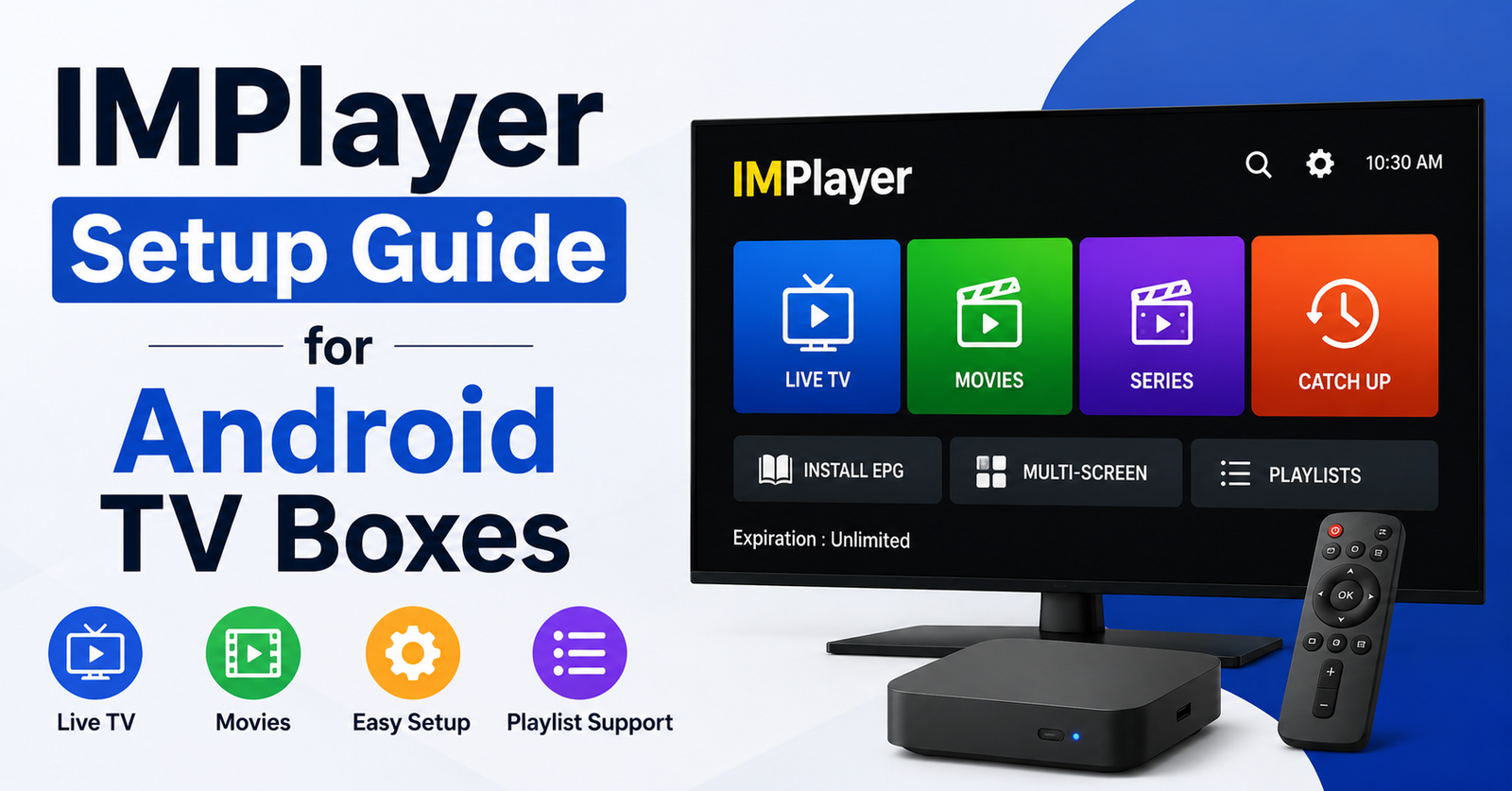
IMPlayer Setup Guide for Android TV Boxes: What Actually Works in 2026
Forget the generic walkthroughs recycled from 2021 forum posts. If you’ve ever stared at a black screen on an Android TV box after entering your portal credentials for the third time, you already know, most IMPlayer Setup Guide for Android TV Boxes are written by people who’ve never actually deployed one at scale. This isn’t that article. This is the configuration manual I wish existed when I was onboarding forty subscribers in a single weekend and half of them couldn’t get past the splash screen.
IMPlayer has quietly become one of the most stable IPTV players for Android TV boxes in 2026, particularly for resellers managing panels with hundreds of active lines. But stability means nothing if the initial setup is botched. A misconfigured IMPlayer install leads to EPG failures, audio sync drift, and the kind of buffering that turns paying subscribers into refund requests.
This IMPlayer Setup Guide for Android TV Boxes covers everything from first install through advanced playback tuning, with specific attention to the UK IPTV reseller deployment workflow that nobody else seems to talk about.
Where to Download IMPlayer Without Getting a Sideloaded Mess
Before touching any configuration screen, the download source matters more than most people realise. IMPlayer is available through the Google Play Store for most Android TV boxes running Android 7.0 and above. That’s the only source you should be using.
Sideloaded APKs floating around Telegram groups and file-sharing forums frequently carry outdated builds. Some are modified with injected ad frameworks, while others simply crash on newer Android TV firmware because they were compiled against deprecated APIs.
Pro Tip: Before downloading, confirm your Android TV box is running Android 7.0 or later. Go to Settings → About → Android Version. Boxes running 6.0 or below will install IMPlayer but experience persistent crashes during EPG loading and channel switching.
Quick compatibility check before you begin:
- Android TV OS 7.0 minimum (8.0+ recommended)
- Minimum 1.5 GB RAM (2 GB for smooth EPG rendering)
- Stable internet connection: 15 Mbps minimum for HD, 30 Mbps for FHD content
- A valid Xtream Codes API or M3U portal URL from your provider or panel
If your box meets those requirements, the IMPlayer Setup Guide for Android TV Boxes becomes straightforward. If it doesn’t, you’re troubleshooting hardware limitations, not software, and that’s a different conversation entirely.
First Launch Configuration: Getting Past the Portal Screen
Once IMPlayer is installed, opening it for the first time presents a portal login screen that trips up a surprising number of users. The interface asks for a server URL, username, and password, standard Xtream Codes API credentials.
Here’s where things go wrong for most people. They paste the full portal URL including the trailing /player_api.php segment. IMPlayer doesn’t want that. It wants the base server URL only.
Correct format: (http://serverdomain.com:port)
Incorrect format: (http://serverdomain.com:port/player_api.php?username=xxx&password=xxx)
The username and password fields handle authentication separately. Merging everything into the URL field is the single most common reason the IMPlayer Setup Guide for Android TV Boxes exists in the first place, it’s a two-second mistake that generates hours of confusion.
After entering credentials correctly, tap “Add User” or “Login” depending on your IMPlayer version. The app will attempt to connect to the server, pull the channel categories, and populate the EPG grid. On a decent connection, this takes between five and twenty seconds. On congested panels with thousands of channels, it can stretch to forty-five seconds on first load.
Pro Tip: If the portal screen hangs beyond sixty seconds, the issue is almost never IMPlayer itself. Check whether your IPTV panel has API connections enabled for that specific line. Some panel admins disable API access by default, which silently blocks IMPlayer from authenticating.
EPG Configuration That Actually Loads Properly
The electronic programme guide is where IMPlayer either shines or falls apart, and it depends entirely on how the EPG source is configured at the panel level. This IMPlayer Setup Guide for Android TV Boxes wouldn’t be complete without addressing the EPG problem that plagues half the installations I’ve seen.
IMPlayer pulls EPG data from the XMLTV source assigned to your Xtream Codes panel. If the panel operator hasn’t mapped EPG IDs correctly to channels, you’ll see a populated channel list with completely blank programme information. The channels work fine, but the guide shows nothing.
Three things to check when EPG is blank:
- Confirm the panel has an active XMLTV source URL configured under EPG settings
- Verify that individual channels have EPG IDs assigned (not just category-level mapping)
- Check whether the EPG source itself is online, many free XMLTV providers go offline without notice
For IPTV Panel resellers running their own panels, the EPG mapping process is manual and tedious but non-negotiable. Every channel that a subscriber sees in IMPlayer needs a corresponding EPG ID that matches the XMLTV feed. Miss one, and that channel shows “No information available” in the guide, which looks broken to the end user even though playback works perfectly. Here’s a quick reference for diagnosing EPG problems:
| EPG issue | Likely cause | Fix |
|---|---|---|
| Completely blank guide | No XMLTV source configured | Add a reliable XMLTV URL to panel settings |
| Partial guide (some channels blank) | Missing EPG ID mapping | Manually assign EPG IDs per channel |
| Guide shows wrong programmes | Mismatched EPG IDs | Cross-reference channel TVG-IDs with XMLTV feed |
| Guide loads but crashes IMPlayer | Oversized XMLTV file (500MB+) | Switch to a lighter EPG source or reduce channel count |
Playback Settings Most People Never Touch
The default playback configuration in IMPlayer works acceptably for casual viewing, but if you’re following this IMPlayer Setup Guide for Android TV Boxes with the goal of eliminating buffering complaints from subscribers, the default settings aren’t enough.
Navigate to Settings → Player within IMPlayer. You’ll find options for decoder type, buffer size, and audio track behaviour. Each of these has a measurable impact on stream stability.
Decoder selection is the first thing to change. IMPlayer offers hardware decoding, software decoding, and automatic. Hardware decoding offloads video processing to the Android TV box’s dedicated chip, which reduces CPU strain and heat. Software decoding uses the main processor, which works but causes frame drops on budget boxes with Amlogic S905X chips.
Set decoder to Hardware unless you’re experiencing colour banding or green-screen artefacts on specific channels, in which case, switch those channels to software decoding individually if IMPlayer permits per-channel decoder assignment, or use automatic as a compromise.
Pro Tip: Buffer size adjustments within IMPlayer are measured in seconds, not megabytes. Setting the buffer to 3 to 5 seconds provides a balance between instant channel switching and smooth playback. Anything above 8 seconds creates noticeable delays when switching channels, which subscribers interpret as “the service is slow” even though it’s actually buffering ahead for stability.
Audio and Subtitle Track Defaults That Save Support Tickets
A detail that separates a proper IMPlayer Setup Guide for Android TV Boxes from a surface-level walkthrough: audio track defaults. IMPlayer can auto-select audio tracks based on language preference. If you’re deploying to a UK audience, set the default audio language to English. This prevents subscribers from landing on foreign-language audio tracks for multilingual streams and filing complaints that “the sound is wrong.”
Subtitles follow the same logic. IMPlayer supports embedded subtitle tracks and external SRT files, but for IPTV use, embedded tracks are what matter. Set subtitle default to “Off” unless the subscriber specifically requests them. Auto-enabled subtitles on live streams create visual clutter and, on budget hardware, can cause frame-rate drops because subtitle rendering consumes GPU resources.
Checklist for audio and subtitle config:
- Default audio language: English (or match your subscriber base)
- Default subtitle: Off
- Audio output: Stereo (unless subscriber has surround system, then passthrough)
- Audio sync offset: Leave at 0ms unless specific channels show lip-sync drift
These four settings alone will reduce “something’s wrong with the audio” support messages by a significant margin. For resellers managing fifty or more lines, that’s hours of saved support time per month.
Deploying IMPlayer Across Multiple Boxes in One Household
This section is specifically for resellers. When you’re deploying IMPlayer across multiple Android TV boxes within a household or across multiple subscribers, the IMPlayer Setup Guide for Android TV Boxes changes from a simple installation walkthrough into a deployment strategy.
Each IMPlayer installation on an Android TV box counts as one connection against the line’s maximum. Most reseller panels allocate one or two connections per line. If a subscriber has two TV boxes, say, one in the living room and one in a bedroom, they’ll need either a two-connection line or two separate lines.
The mistake resellers make is issuing single-connection lines and then fielding complaints when the second box shows “maximum connections reached.” This isn’t an IMPlayer issue. It’s a panel allocation issue, and it needs to be handled at the point of sale, not after deployment.
Pro Tip: When setting up IMPlayer on multiple boxes within one household, use different usernames for each box even if they share the same subscription package. This makes troubleshooting dramatically easier. When a subscriber reports buffering on “their TV,” you can immediately identify which box, which line, and which server is involved without playing twenty questions.
Android TV Box Hardware That Pairs Best With IMPlayer
Not every Android TV box handles IMPlayer equally, and this IMPlayer Setup Guide for Android TV Boxes wouldn’t be honest if it pretended otherwise. The player’s performance is directly tied to the hardware it runs on.
Boxes powered by Amlogic S905X3 or S905X4 chipsets handle IMPlayer’s EPG rendering and HLS stream decoding without strain. The older S905X (no suffix) struggles with FHD content when EPG is active simultaneously. Allwinner and Rockchip-based boxes are a gamble, some work fine, others exhibit audio desynchronisation that no setting can fix. Here’s how the common chipsets perform in practice:
| Chipset | IMPlayer performance | Recommended? |
|---|---|---|
| Amlogic S905X4 | Excellent, smooth EPG, fast switching | Yes |
| Amlogic S905X3 | Very good, minor delays on large EPGs | Yes |
| Amlogic S905X2 | Acceptable, occasional frame drops | Conditionally |
| Amlogic S905X | Struggles with FHD + active EPG | No for new deployments |
| Rockchip RK3318 | Inconsistent audio sync | Avoid |
| Allwinner H6 | Crashes on large channel lists | Avoid |
RAM matters too. Boxes with 1 GB of RAM will run IMPlayer but will kill the app in the background aggressively. When the subscriber switches to another app and returns, IMPlayer restarts from scratch, reloading the portal, repopulating the EPG, and losing their place. 2 GB is the functional minimum. 4 GB is ideal.
Network Configuration on the Android TV Box Itself
The IMPlayer Setup Guide for Android TV Boxes extends beyond the app. The network configuration on the box itself has a direct impact on stream quality that IMPlayer inherits but cannot override.
Ethernet versus Wi-Fi is the first decision. Every reseller should recommend Ethernet to subscribers. Wi-Fi introduces latency variance, packet loss during peak household usage, and signal degradation through walls. A box sitting three metres from a router on 5 GHz Wi-Fi will still underperform compared to the same box on a direct Ethernet connection, particularly during prime-time hours when neighbouring Wi-Fi networks create interference.
If Ethernet isn’t physically possible, instruct subscribers to use the 5 GHz band exclusively. The 2.4 GHz band is saturated in most urban environments and will cause micro-buffering that looks like a server issue but is entirely local.
DNS settings on the box matter too. Default ISP DNS servers in the UK increasingly use DNS-level filtering that can interfere with IPTV portal resolution. Configuring the box to use alternative DNS providers, Cloudflare’s 1.1.1.1 or Google’s 8.8.8.8, bypasses this and often improves initial connection times to the IPTV server.
Pro Tip: Some ISPs have moved beyond DNS poisoning into deep packet inspection for IPTV traffic identification. If a subscriber reports that IMPlayer connects but streams won’t play, and you’ve confirmed the line works on other networks, the ISP is likely throttling or blocking. A VPN at the router level, not on the box, is the cleanest solution for this.
Scaling IMPlayer Deployment Across a Full Reseller Panel
For resellers managing panels with dozens or hundreds of subscribers, the IMPlayer Setup Guide for Android TV Boxes needs a systematic deployment workflow, not a one-off install guide.
Step one is creating a standardised setup document for your subscribers. This document should include screenshots of each configuration screen with your recommended settings pre-filled. Most subscribers will follow a visual guide more reliably than written instructions.
Step two is pre-configuring IMPlayer settings on a reference box and documenting the exact sequence. This becomes your baseline. Any deviation from this baseline during a support call immediately narrows the troubleshooting scope.
Step three is testing every new server or panel update on your reference box before announcing it to subscribers. Panel updates can change API behaviour, EPG source formatting, or connection limits, all of which affect IMPlayer’s performance on the subscriber end.
Scaling checklist for resellers:
- Maintain a reference Android TV box with IMPlayer permanently configured
- Document your recommended settings with screenshots
- Test panel changes on the reference box before rolling out
- Create a troubleshooting decision tree for common IMPlayer issues
- Track which Android TV box models your subscribers use to identify hardware-related patterns
This operational discipline separates resellers who scale from resellers who drown in support tickets.
Troubleshooting the Five Most Common IMPlayer Failures
Even with a perfect IMPlayer Setup Guide for Android TV Boxes, things break. Here are the five failures I see most frequently, and the actual fixes, not the “clear cache and restart” nonsense that populates every forum thread.
- Black screen after login, channels listed but nothing plays. This is almost always a server-side issue, not IMPlayer. The panel’s streaming output port may be blocked, or the server’s transcoding process has crashed. Verify by testing the same line on a different player (VLC, for instance). If VLC also shows a black screen, it’s the server.
- EPG loads but shows yesterday’s programming. The XMLTV source hasn’t updated. Check the panel’s EPG refresh schedule. Many operators set it to refresh once daily, if the source updates at midnight but the panel refreshes at 6 AM, there’s a six-hour window of stale data.
- IMPlayer crashes when opening VOD section. The VOD catalogue on the panel is too large for the box’s available RAM to index. Boxes with 1 GB RAM hit this wall around 5,000 VOD entries. Either reduce the VOD catalogue assigned to that subscription package or instruct the subscriber to avoid the VOD section entirely if live TV is the primary use case.
- Audio plays but video is frozen. Decoder mismatch. Switch from hardware to software decoding for the affected channel. This is common on channels encoded in HEVC/H.265 on boxes that only have partial hardware support for that codec.
- “Server not found” error on first connection attempt. DNS resolution failure. The box’s default DNS cannot resolve the server hostname. Change DNS to 1.1.1.1 or 8.8.8.8 in the box’s network settings and retry.
Keeping IMPlayer Updated Without Breaking Your Configuration
IMPlayer updates through the Google Play Store, and most updates are seamless. But occasionally, an update resets playback preferences or changes the default decoder setting. This IMPlayer Setup Guide for Android TV Boxes includes a maintenance protocol for exactly this reason.
After every IMPlayer update, open Settings → Player and verify your decoder, buffer, and audio configurations haven’t reverted to defaults. This takes thirty seconds and prevents a wave of subscriber complaints that mysteriously appear on the same day.
For resellers, communicate updates proactively. A simple message to subscribers, “IMPlayer has updated, you may need to re-enter your server details,” costs nothing but prevents confusion.
Pro Tip: Disable auto-updates for IMPlayer on subscriber boxes if you’re managing a large deployment. This lets you test updates on your reference box first, confirm nothing breaks, and then approve the update across your subscriber base in a controlled rollout rather than having every box update simultaneously and flood your support channels if something goes wrong.
When IMPlayer Is (and Isn’t) the Right Player to Deploy
This IMPlayer Setup Guide for Android TV Boxes assumes IMPlayer is the right player for your deployment. But it’s worth understanding where it sits in the landscape.
IMPlayer excels at Xtream Codes API integration, clean EPG presentation, and stable HLS playback on mid-range Android TV hardware. It handles large channel lists (3,000+) better than most alternatives and its interface is intuitive enough for non-technical subscribers to navigate without hand-holding.
Where it falls short: catch-up TV support is inconsistent depending on the panel’s configuration. Some operators report that catch-up streams fail to initialise even when the panel supports timeshift. And the VOD interface, while functional, lacks the search granularity that dedicated VOD-focused players offer.
For resellers, the decision comes down to support burden. IMPlayer generates fewer “how do I use this” tickets than more complex players, which means lower operational overhead per subscriber. That matters when you’re managing hundreds of lines.
Frequently Asked Questions
Does IMPlayer work on all Android TV boxes?
IMPlayer requires Android 7.0 or higher and runs best on boxes with Amlogic S905X3 or S905X4 chipsets and at least 2 GB of RAM. Boxes with older Allwinner or Rockchip processors may experience crashes and audio sync problems. Always verify your box’s Android version and chipset before installing IMPlayer to avoid hardware-related playback issues.
How do I fix buffering in IMPlayer on my Android TV box?
Buffering in IMPlayer usually stems from network conditions rather than the app itself. Switch from Wi-Fi to Ethernet, set the buffer size to 3 to 5 seconds in IMPlayer’s player settings, and change your box’s DNS to 1.1.1.1 or 8.8.8.8. If buffering persists only during peak hours, your ISP may be throttling IPTV traffic, which requires a router-level VPN solution.
Can I use IMPlayer on multiple Android TV boxes with one subscription?
Each IMPlayer installation counts as one active connection against your subscription’s limit. If your line allows one connection, only one box can stream at a time. For multi-room households, request a multi-connection line or separate lines from your reseller. Using distinct login credentials per box simplifies troubleshooting significantly.
Why is my EPG blank in IMPlayer even though channels play fine?
Blank EPG data indicates that your provider’s panel either lacks an XMLTV source or has not mapped EPG IDs to individual channels. Contact your reseller or panel operator to confirm XMLTV configuration. This is a server-side issue that cannot be resolved through IMPlayer settings on your Android TV box.
Is IMPlayer better than IPTV Smarters Pro for Android TV boxes?
IMPlayer handles large channel lists and EPG rendering more efficiently than IPTV Smarters Pro on mid-range hardware. It also produces fewer authentication errors with Xtream Codes API panels. However, IPTV Smarters Pro offers more granular VOD search and catch-up functionality. For resellers prioritising low support overhead, IMPlayer typically generates fewer subscriber complaints.
How often should I update IMPlayer on my Android TV box?
Check for updates monthly through the Google Play Store. Avoid enabling auto-updates if you’re a reseller managing multiple deployments, test each update on a reference box first. Some updates reset playback preferences including decoder type and buffer size, so verify your settings after every update to prevent unexpected performance changes.
What internet speed do I need for IMPlayer to stream without issues?
A stable 15 Mbps connection handles HD content reliably through IMPlayer, while FHD streams require 30 Mbps minimum. The emphasis is on stability rather than raw speed, a consistent 20 Mbps Ethernet connection outperforms a fluctuating 50 Mbps Wi-Fi link. Run a speed test directly on the Android TV box, not on a phone or laptop, to get an accurate reading of available bandwidth.
Can resellers pre-configure IMPlayer settings for subscribers?
There is no centralised remote configuration tool for IMPlayer across multiple boxes. However, resellers can create a standardised setup document with screenshots of recommended settings and distribute it to subscribers during onboarding. Maintaining a reference box with your exact configuration allows you to verify settings and replicate them consistently across your subscriber base.
Success Checklist: Your IMPlayer Deployment in Ten Actions
- Verify your Android TV box runs Android 7.0+ with at least 2 GB RAM before installing IMPlayer
- Download IMPlayer exclusively from the Google Play Store, never sideload from unverified sources
- Enter only the base server URL in the portal field, strip out any API path segments
- Set the decoder to Hardware and buffer to 3 to 5 seconds immediately after first login
- Configure default audio to English and subtitles to Off to reduce subscriber support queries
- Switch the box’s DNS to 1.1.1.1 or 8.8.8.8 to bypass ISP-level DNS filtering
- Connect via Ethernet, if impossible, enforce 5 GHz Wi-Fi only
- Maintain a reference Android TV box with your standardised IMPlayer configuration for testing
- Disable auto-updates and test every new IMPlayer version before rolling out to subscribers
- Build your complete UK IPTV reseller toolkit and panel infrastructure through British Reseller to support scalable IMPlayer deployments across your subscriber base