Book Appointment Now
IPTV Setup on Chromecast: The Complete 2026 Reseller Guide
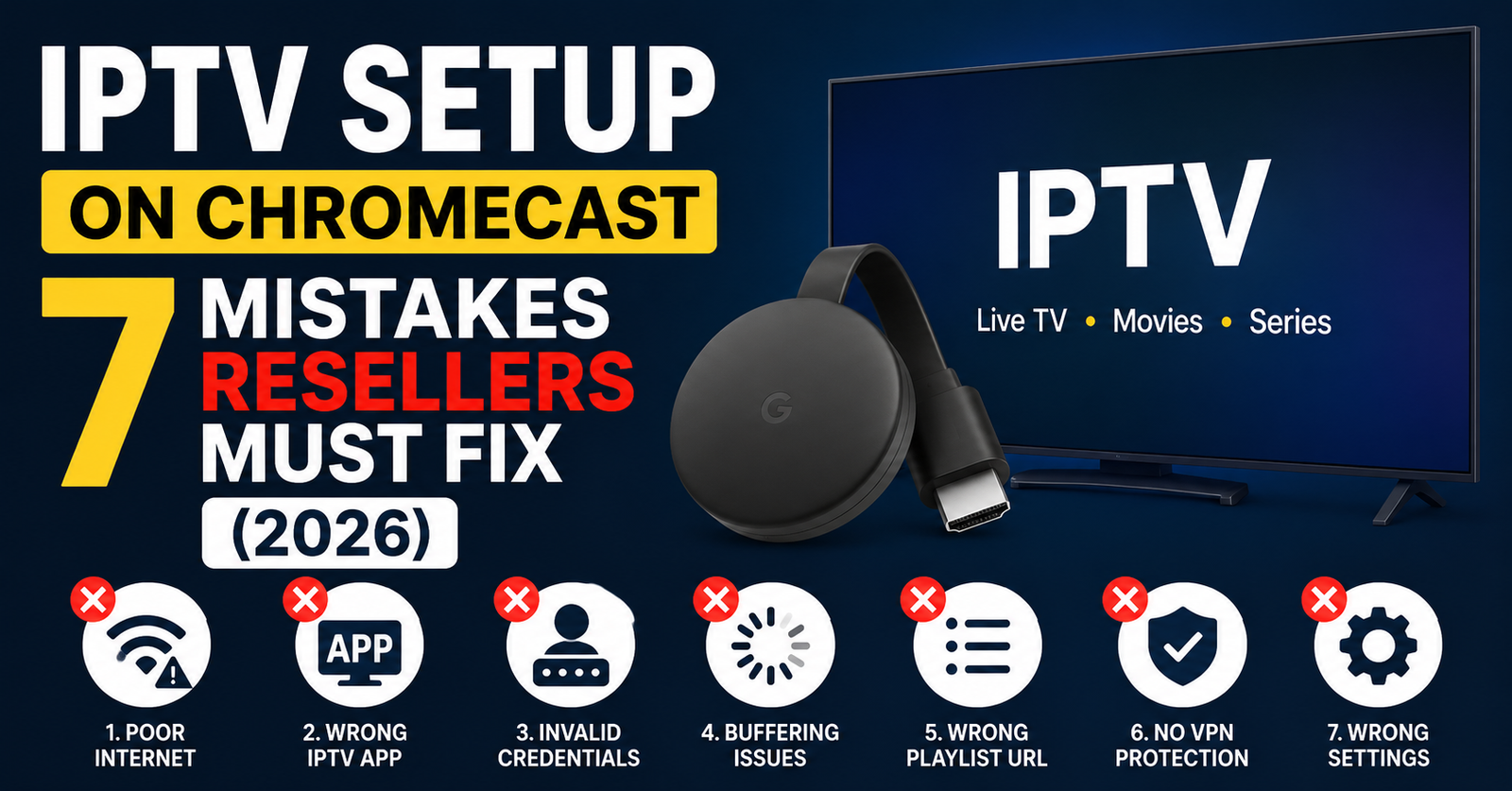
Somewhere around half your support tickets trace back to one moment: the customer plugging in the wrong Chromecast and wondering why nothing works. That single point of failure, hardware confusion, sits underneath almost every complaint thread in the reseller world. And it tells you something important about how IPTV setup on Chromecast actually needs to be taught, sold, and supported in 2026.
This isn’t a walkthrough written by someone who Googled “cast IPTV to TV” and stitched together screenshots. This comes from years of answering desperate late-night messages from UK IPTV resellers whose customers bought a £20 dongle off a marketplace and expected premium sports streams to run flawlessly. Let’s fix that.
The Hardware Trap That Generates 60% of Your Support Tickets
Here’s the reality nobody puts in their onboarding PDF: most IPTV setup on Chromecast failures happen before the customer even opens an app. They happen at the purchase stage.
The original Chromecast, that small dongle with no remote, no interface, no app store, was designed for casting. Screen mirroring. YouTube from your phone to your TV. It was never built to handle sustained HLS streams, EPG data parsing, or the kind of persistent connection an IPTV service demands.
Yet customers still buy them. They see “Chromecast” on the box, assume compatibility, and then flood your inbox.
- Old dongle models lack a dedicated operating system for app installs
- They rely entirely on a phone as the controller, adding a failure point
- Processing power can’t handle modern stream decoding without stuttering
- No ethernet port, no way to stabilise the connection
Pro Tip: Before any IPTV setup on Chromecast, confirm the customer owns a Chromecast with Google TV, the version with a remote and app launcher. If they own an older dongle, redirect them. One pre-sale message saves you twenty post-sale tickets.
The distinction between “Chromecast” and “Chromecast with Google TV” is where your onboarding needs to start. Not at the app. Not at the M3U line. At the hardware.
Why Google TV Changes the Entire IPTV Setup on Chromecast Equation
The Chromecast with Google TV introduced something the old dongle never had: independence. It runs Android TV. It has a home screen, a remote, and, critically, access to the Google Play Store and sideloading capability.
That single shift transforms your IPTV setup on Chromecast from a clunky casting workaround into a direct app experience. The customer installs the player app natively, enters their login credentials from your panel, and they’re watching. No phone needed. No casting chain. No BubbleUPnP. No Web Video Caster.
For resellers, this matters because every extra step in the setup chain is a potential support ticket. Casting workflows introduce:
- Phone battery drain during long viewing sessions
- Disconnections when the phone locks or switches Wi-Fi
- Audio sync problems between the casting device and the TV
- App permission conflicts on Android and iOS
Direct app installation eliminates all of that. Your panel generates the credentials. The customer types them in. Done.
Pro Tip: If your panel supports Xtream Codes API login, push that method over M3U playlists for Chromecast users. API connections handle EPG data and stream categorisation natively, M3U files often lose both during IPTV setup on Chromecast.
The Wi-Fi Problem Nobody Wants to Admit
Every UK IPTV reseller has had this conversation: “Your service is buffering constantly.” You check the server, uptime is clean, bitrate is stable, every other user on the same line is streaming without a hiccup. The problem isn’t your infrastructure. It’s their Wi-Fi.
Chromecast with Google TV ships without an ethernet port. Out of the box, it’s a wireless-only device. And for standard YouTube or Netflix streams running on adaptive bitrate with massive CDN backing, that’s fine. For IPTV, where streams often run at fixed bitrates from single-origin servers, Wi-Fi instability creates visible, immediate problems.
Weak signal symptoms during IPTV setup on Chromecast and post-setup viewing include:
- Buffering every 20-40 seconds on premium sports streams
- Channels loading then freezing after 5-10 seconds
- EPG data failing to populate because the connection drops mid-sync
- VOD content stuttering at higher resolutions
The fix is blunt but effective: a USB-C ethernet adapter. They cost under £15 and they convert the Chromecast from a device gambling on your customer’s router placement to a hard-wired, stable endpoint.
| Factor | Wi-Fi connection | Ethernet adapter |
|---|---|---|
| Latency consistency | Variable, 15-80ms spikes | Stable, under 10ms |
| Buffering on live streams | Frequent at peak hours | Rare with adequate bandwidth |
| EPG sync reliability | Intermittent failures | Consistent loading |
| Customer support tickets | High volume | Near-zero hardware complaints |
| Recommended for | Casual, low-resolution use | Reseller-grade IPTV setup on Chromecast |
Tell your customers. Better yet, sell the adapter alongside the subscription. Bundle it. Make it part of the onboarding kit. Every ethernet adapter you move saves you an hour of troubleshooting.
The Direct App Install Workflow: Step by Step Without the Bloat
Enough theory. Here’s how IPTV setup on Chromecast with Google TV actually works when you strip away the unnecessary complexity.
Your customer needs three things: a Chromecast with Google TV, an internet connection (wired preferred), and their login credentials from your panel.
Step one: access the app store. From the Google TV home screen, navigate to the search icon. Type the name of your preferred IPTV player app. Most panels support apps available directly on the Play Store. If your app isn’t listed, sideloading via Downloader or Send Files to TV works, but for the average household subscriber, Play Store availability reduces friction to almost zero.
Step two: enter credentials. Open the app. Select Xtream Codes API login if available. Enter the server URL, username, and password provided by the panel. This method pulls channel categories, EPG data, and VOD libraries automatically.
Step three: configure playback settings. Set the default player to hardware decoding. This offloads stream processing to the Chromecast’s chipset rather than relying on software rendering, which reduces buffering on higher-bitrate channels.
Pro Tip: After the initial IPTV setup on Chromecast, tell the customer to restart the device once before watching. The first boot after app install often caches EPG data poorly. A restart forces a clean sync and prevents the “no programme guide” complaint that hits your inbox twelve hours later.
EPG Failures: The Silent Subscriber Killer
Your customer got everything right. Correct hardware. Ethernet plugged in. App installed. Channels load. Picture is sharp. Then they open the programme guide and it’s blank.
This is where you lose subscribers, not to buffering, not to bans, but to the perception that the service is incomplete. A blank EPG makes a premium IPTV service feel like a dodgy stream link someone posted in a forum. It destroys the professional feel your panel is supposed to deliver.
EPG failures after IPTV setup on Chromecast happen for specific, fixable reasons:
- The XMLTV source URL hasn’t been correctly mapped in the panel
- Time zone offset between the EPG source and the Chromecast’s system clock
- The app’s EPG refresh interval is set too long, causing stale or empty data
- Large EPG files (20,000+ entries) timeout on slower connections before fully loading
For resellers operating a panel, EPG management is infrastructure work, not an afterthought. Your EPG source needs to be fast, regularly updated (every 12 hours minimum), and properly compressed. Gzipped XMLTV files load in a fraction of the time that raw XML does, on Chromecast hardware with limited RAM, this difference determines whether the guide populates or times out silently.
Pro Tip: Set your panel’s EPG update cycle to every 8 hours rather than the default 24. Stale EPG data is the number-one reason customers say “the guide doesn’t match what’s playing,” and once they say that, they start questioning whether your entire service is reliable.
DNS and ISP Blocking: What Breaks Things Before You Realise
You’ve handled hardware, connectivity, app install, and EPG. The customer should be sorted. But in 2026, there’s a layer underneath all of that which can silently kill the entire experience: DNS-level blocking.
Major ISPs now deploy AI-driven deep packet inspection that identifies IPTV traffic patterns and blocks them at the DNS resolution stage. Your customer’s Chromecast sends a DNS query, the ISP intercepts it, and the stream server address never resolves. The app just shows “connection failed,” and the customer blames you.
The countermeasure is straightforward but has to be configured at the router level or directly on the Chromecast:
- Switch DNS to a privacy-focused resolver (Cloudflare’s 1.1.1.1 or Google’s 8.8.8.8)
- Enable DNS-over-HTTPS where the router firmware supports it
- If the ISP uses SNI filtering beyond DNS, a lightweight VPN on the router handles it
For IPTV setup on Chromecast, DNS configuration is easy to miss because Google TV doesn’t expose advanced network settings prominently. The customer has to navigate to Settings → Network → Advanced → IP Settings → Static, then manually input the DNS server.
- Most customers won’t do this without a guide
- Your onboarding documentation must include this step with screenshots
- Alternatively, configure DNS at the router so every device benefits automatically
This is the kind of detail that separates a reseller who retains subscribers from one who keeps losing them to “it just stopped working” churn.
Scaling Your Support Across Hundreds of Customers
When you’re running ten customers, you can walk each one through setup on WhatsApp. When you’re running three hundred, that model collapses.
Resellers who scale successfully build a self-service layer around IPTV setup on Chromecast. This means:
Pre-sale hardware verification. Before activating a subscription, ask what device the customer owns. A single qualifying question, “Do you have a Chromecast with Google TV with a remote?”, prevents the most common support scenario.
A setup guide, not a knowledge base. One page. Numbered steps. Screenshots from the actual Chromecast interface. Don’t link them to a generic FAQ, give them a guide specific to IPTV setup on Chromecast that matches your panel’s app and login method.
Video walkthrough under three minutes. Record your screen showing the exact process: open app, enter credentials, configure player, restart device, verify EPG. Upload it unlisted. Link it in the welcome message your panel sends.
Pro Tip: Track which step in your IPTV setup on Chromecast guide generates the most follow-up questions. If 40% of tickets ask about EPG, your guide’s EPG section is failing. Rewrite that section, don’t add another FAQ underneath it.
Panel operators who treat onboarding as a product, not an afterthought, see measurably lower churn in the first 30 days. The setup experience is the first impression of your service. If IPTV setup on Chromecast feels difficult, the customer assumes the whole service is difficult.
Stream Format Compatibility: The Technical Layer Most Guides Skip
Not every IPTV stream behaves the same on Chromecast hardware. The Chromecast with Google TV supports hardware decoding for H.264 and H.265 (HEVC), but the experience varies depending on the stream’s container format and the app’s player engine.
If your panel serves streams in TS (transport stream) containers, the Chromecast handles them well through most player apps. HLS streams, the standard for modern IPTV delivery, also perform reliably as long as the segment duration isn’t set excessively short (sub-2-second segments increase buffer frequency on lower-powered devices).
Where problems emerge during IPTV setup on Chromecast:
- MPEG-DASH streams sometimes require ExoPlayer-based apps rather than the default player
- 4K HEVC streams push the Chromecast’s Amlogic chipset near its limits, sustained 60fps 4K content may drop frames
- Audio codec mismatches (AC3/EAC3 passthrough) can result in no sound on certain channels while video plays fine
For resellers, the actionable takeaway is knowing your panel’s stream output. If you’re offering 4K channels, verify they play on Chromecast before listing them in your package. One broken premium channel on the day a subscriber tunes in for a major match costs you more than the sale was worth.
Frequently Asked Questions
Do I need a specific Chromecast model for IPTV setup on Chromecast?
Yes. You need the Chromecast with Google TV, the version that comes with a remote control and runs Android TV. Older dongle-style Chromecasts that rely on casting from a phone lack the processing power, app support, and connection stability required for reliable IPTV playback. Always verify the model before purchasing a subscription.
Can I use Wi-Fi for IPTV setup on Chromecast or do I need ethernet?
Wi-Fi works for initial setup and casual viewing at lower resolutions. However, for consistent performance on live streams, especially premium sports, a USB-C ethernet adapter is strongly recommended. It eliminates Wi-Fi interference, reduces latency spikes, and stops the intermittent buffering that generates the majority of customer complaints.
Why is my EPG blank after completing IPTV setup on Chromecast?
Blank EPG usually results from a misconfigured XMLTV source in the panel, a timezone mismatch between the Chromecast and the EPG feed, or a large EPG file timing out before it fully downloads. Restart the device after initial setup, ensure your panel’s EPG updates at least every 12 hours, and use gzipped XMLTV files to reduce load times.
How do I sideload an IPTV app onto Chromecast with Google TV?
Install the “Downloader” app from the Google Play Store on your Chromecast. Open it, enter the direct download URL of your IPTV app’s APK file, and follow the installation prompts. You may need to enable “Install unknown apps” in the device security settings first. This method is necessary only if your player app isn’t available on the Play Store.
Will a VPN slow down my streams after IPTV setup on Chromecast?
A VPN adds encryption overhead, which can reduce speeds by 10-20% depending on the provider and server distance. However, if your ISP actively blocks IPTV traffic through DNS poisoning or deep packet inspection, a VPN is the only way to restore access. Configure it at the router level rather than on the Chromecast itself for better performance.
How many panel credits should I allocate per Chromecast subscriber?
Credit allocation depends on your panel’s pricing tier, but most resellers allocate 1 credit per single-connection subscription. If the subscriber streams on multiple devices including a Chromecast, multi-connection credits apply. Factor in a small margin for trial credits, letting new customers test IPTV setup on Chromecast before committing reduces refund requests significantly.
What’s the best player app for IPTV on Chromecast with Google TV?
The best app depends on your panel’s compatibility, but apps supporting Xtream Codes API login tend to deliver the smoothest experience on Chromecast. They handle channel categorisation, EPG integration, and catch-up TV natively. Avoid apps that only support M3U playlist import, they often lose EPG data and require manual updates.
Can my customers use voice search on Google TV to find IPTV channels?
Voice search on Google TV searches across installed apps and Google’s content library, but it won’t search within your IPTV app’s channel list. Customers need to navigate channels directly within the player app. Setting up a favourites list during initial IPTV setup on Chromecast makes daily navigation faster and reduces the “I can’t find my channels” support queries.
IPTV Setup on Chromecast: Reseller Success Checklist
- Verify every customer owns a Chromecast with Google TV before activating their subscription, reject older dongle models outright
- Recommend or bundle a USB-C ethernet adapter with every new subscription to eliminate Wi-Fi-related support tickets
- Standardise your onboarding around direct app install via Google Play Store, avoid casting workflows entirely
- Push Xtream Codes API login over M3U playlist import for cleaner EPG and category handling
- Set your panel’s EPG refresh cycle to every 8 hours and serve gzipped XMLTV files to prevent blank guide complaints
- Include DNS configuration instructions (or router-level setup) in your onboarding guide to preempt ISP blocking
- Create a single-page visual setup guide and a sub-3-minute video walkthrough specific to IPTV setup on Chromecast
- Test every 4K and HEVC channel on Chromecast hardware before including them in subscriber packages
- Track your most-asked support question weekly and rewrite the relevant section of your guide, don’t just stack FAQs
- Visit britishreseller.com for UK IPTV Reseller panel credit packages and reseller infrastructure built around real operator needs