Book Appointment Now
IPTV DNS Troubleshooting Guide: Portal or Resolver?
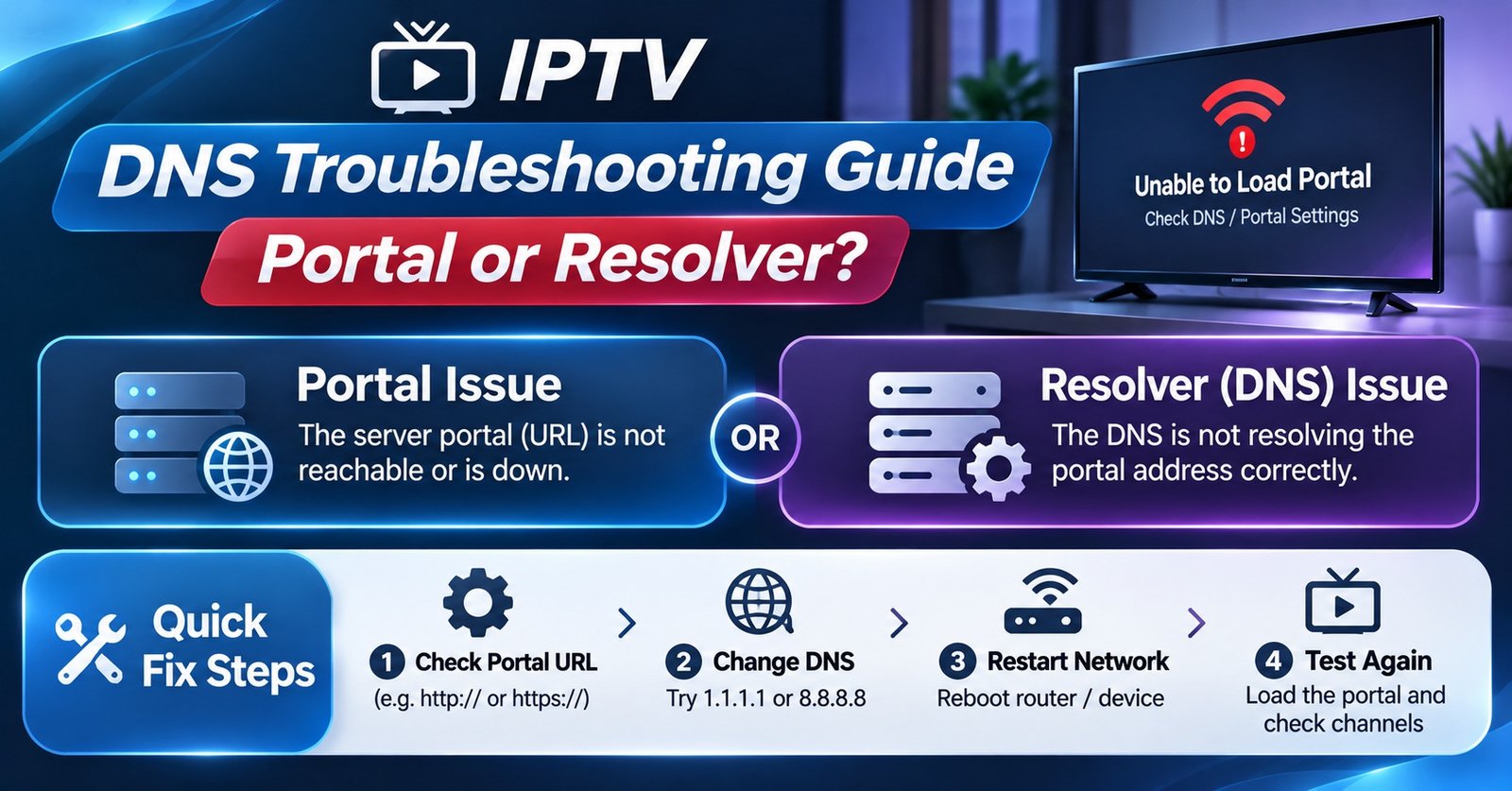
This IPTV DNS Troubleshooting Guide starts with the check most people skip: confirm which “DNS” is actually failing. In IPTV apps, the word often refers to the portal address typed into the login screen, while on a network it means the resolver that turns that address into an IP. So before touching any settings, read the exact error, check the portal address character by character, and then try the same login on a mobile hotspot. If it works on the hotspot, the problem sits with the home network or its resolver. If it fails everywhere, the portal itself, the account or the provider is the likelier cause.
That single network swap saves a surprising amount of wasted effort. Changing DNS servers on a television, flushing caches and rebooting routers can all feel productive, yet none of them will help if the domain has expired, the provider has moved servers, or the account has lapsed. Work through the tests below in order, note what each one shows, and stop as soon as a result points clearly to one layer. Device menus differ by model and software version, so treat the paths later in this article as a guide rather than a guarantee.
Two Different Things Called DNS
IPTV Resellers and providers commonly hand out login details in three parts: a username, a password and a “DNS”. That last item is really a portal address, usually something like http://portal.example.com:8080. It tells the player where the service lives. It is not a DNS server, and typing it into a television’s network settings will break the internet connection rather than fix anything.
The resolver is a separate thing entirely. It is the service, usually supplied automatically by your router or broadband provider, that looks up portal.example.com and returns the numerical address the app connects to. When it fails, the app cannot find the server even though every login detail is correct.
The distinction matters because the fixes point in opposite directions. A portal problem is solved in the app or with the provider. A resolver problem is solved on the device, the router or the network. Most of the confusion in support chats comes from customers being told to “change the DNS” without anyone clarifying which one.
| What people call it | What it actually is | Where it is changed |
|---|---|---|
| “DNS”, “Server URL”, “Portal” | The service address in the login form | Inside the IPTV app |
| “DNS server”, “Resolver” | The lookup service for the whole connection | Device network settings or router |
| “Private DNS” (Android) | An encrypted resolver set by hostname | Android network settings |
The IPTV DNS Troubleshooting Guide in Six Tests
Each test below has a purpose, an expected result and a decision attached. Run them in this order, because the early ones are quick and rule out the most common mistakes before you change any settings.
Test 1: Read the exact error
Open the app and attempt the login once more, then write down the wording of the message. Players use different phrasing, but the wording usually falls into one of three groups.
Messages such as “unable to resolve host”, “unknown host” or “server not found” suggest the name could not be looked up. That points towards the resolver or towards a portal domain that no longer exists.
Messages such as “connection timed out” or “failed to connect” suggest the name was found but nothing answered at that address. Think server down, wrong port or a blocked route.
Messages such as “invalid credentials”, “account expired” or “authorisation failed” mean the server was reached and answered. DNS has done its job here, so the problem lies with the account, not with the network.
Expected outcome: you can place the error in one of those three groups. If it is the third group, stop here and check the subscription status with whoever sold it.
Test 2: Check the portal address character by character
Compare what is typed in the app against what the provider or IPTV panel reseller actually sent. The usual mistakes are small: http written as https (or the reverse), a missing port number, a missing colon before the port, a trailing space copied from a message, a full stop at the end of the address, or the letter O typed instead of a zero. Some apps also expect the address without a trailing slash.
Retype the address manually rather than pasting it again, since a hidden space tends to travel with the paste.
Expected outcome: if a correction fixes the login, the issue was never a network fault. If the address matches exactly and still fails, move on.
Test 3: Swap networks
Turn on a mobile hotspot from a phone, connect the streaming device to it and try the same login. This changes the broadband provider, the router and the resolver in one move, which makes it the most informative single test in this guide.
Expected outcome: if the login works on the hotspot but not at home, the fault is on the home side: the router, its resolver, a filtering setting, or a block applied by the home broadband provider. If it fails on both, the portal, the server or the account is the likely cause, and changing DNS settings at home will not help.
Test 4: Look the name up directly
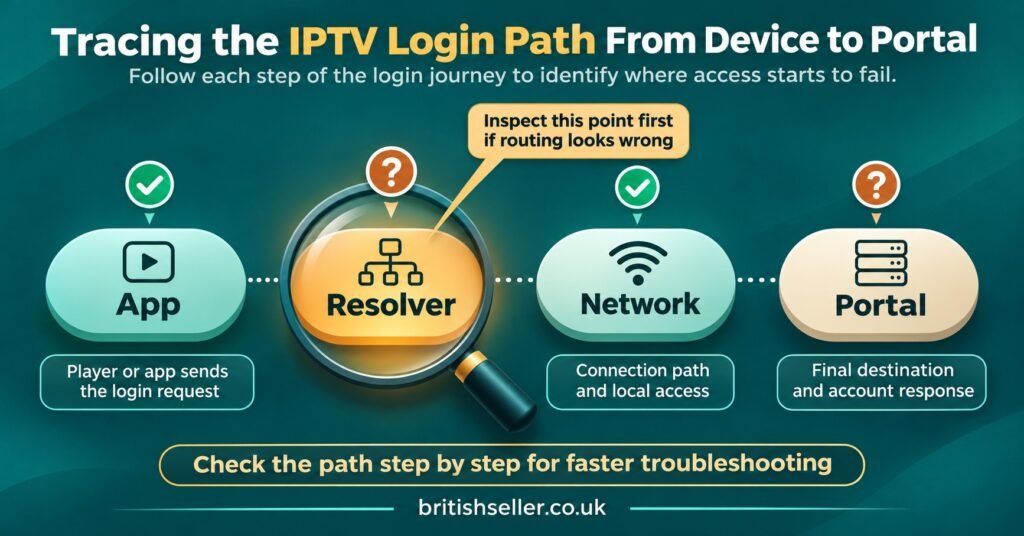
On a Windows PC or a Mac connected to the same home network, open Command Prompt or Terminal and run a lookup on the portal hostname only (without http:// or the port):
nslookup portal.example.com
There are three results worth recognising. An address returned means the name resolves on this network. A reply such as “Non-existent domain” means the resolver says the name does not exist, which often signals a typo, an expired domain or a provider that has changed addresses. A timeout means the resolver itself is not answering.
Next, run the same lookup against a different public resolver by adding its address after the hostname, for example nslookup portal.example.com 1.1.1.1.
Expected outcome: if both lookups agree, the resolver is probably not the problem. If the home resolver fails while the other succeeds, or the two return different addresses, the home resolver is the variable worth investigating.
Pro tip: Testing from a browser can mislead you. Many modern browsers use their own encrypted DNS, so a portal that loads in a browser on the same Wi-Fi does not prove the television’s resolver is working. A command-line lookup avoids that trap.
Test 5: Clear what is cached
Devices and routers remember recent lookups. When a provider has recently moved its server, an old answer can linger. Restart the router, then fully power off the streaming device by removing its power for thirty seconds rather than putting it to sleep. On a computer, flush the cache with ipconfig /flushdns on Windows, or sudo dscacheutil -flushcache followed by sudo killall -HUP mDNSResponder on a Mac.
Expected outcome: if the login works after a full restart, a stale cached answer was the cause. If a provider migration is under way, it may take some hours for every network to see the new address, so a fix that appears to work and then fails again is not unusual during that window.
Test 6: Change the resolver on one device, temporarily
Only now does it make sense to change DNS settings, and only on the one device that is failing. Note the original settings first (a phone photo of the screen is the simplest record), then set a different public resolver and retry the login.
Expected outcome: if the login now works, the original resolver was failing or filtering. Decide whether to keep the change, apply it at router level, or ask the broadband provider why lookups failed. If it still fails, put the original settings back. You have ruled out the resolver, and the remaining causes sit with the portal, the server or the account.
Putting the Results Together
Individual results rarely tell the whole story. Combining them usually does, and the pattern below covers most cases you are likely to meet.
| What you saw | Most likely layer | Sensible next step |
|---|---|---|
| Works on hotspot, fails at home, lookup fails at home | Home resolver or router filtering | Check router filters, then try another resolver |
| Fails everywhere, lookup says the domain does not exist | Portal domain | Ask the provider or reseller for a current address |
| Fails everywhere, lookup returns an address, connection times out | Server or port | Report to the provider with the time of failure |
| Fails on one device only, others on the same Wi-Fi work | That device’s settings | Check for a leftover manual DNS or Private DNS entry |
| Works for a while, then fails again after a recent server move | Cached or propagating records | Full restarts, then wait and retest |
| Server answers with an account message | Account or subscription | Contact the seller; DNS is not involved |
The fourth row deserves a closer look. A device that fails while everything else in the house works is very often carrying an old manual setting: a resolver someone entered months ago, an ad-blocking service that has since stopped responding, or an Android Private DNS hostname that no longer exists. Removing that setting is frequently the whole fix.
Device and Version Caveats
Menu names move between software updates, regions and model years. The paths below reflect common layouts in 2026, but if a label differs on your screen, look for the same sequence of ideas: network, the current connection, then IP or DNS settings.
Amazon Fire TV devices
Fire TV does not offer a simple DNS field for an existing connection. The usual route is Settings, then Network, highlighting the Wi-Fi network and pressing the menu button on the remote to forget it. Reconnect, enter the Wi-Fi password, and choose Advanced instead of Connect. You will be asked for an IP address, gateway, network prefix length (commonly 24 on home networks) and two DNS entries.
This switches the device to a fixed IP address. Choose one outside the range the router hands out automatically, or another device may later claim the same address and cause dropouts that look like a streaming fault. To undo the change, forget the network again and reconnect normally.
Android TV, Google TV and Android phones
Android phones running version 9 or later include a Private DNS option, usually under Network and internet (on many Samsung phones it sits under Connections, then More connection settings). It accepts a hostname for an encrypted resolver, not an IP address. If the hostname is wrong or the service stops responding, every app on the phone can fail to look up names, which makes this one of the first settings to check when a single phone misbehaves.
Television versions of Android vary much more between manufacturers. Many builds have no Private DNS menu at all, and DNS can only be changed by switching the Wi-Fi connection to a static IP under its advanced options.
Samsung televisions
On most recent Samsung sets the path runs through Settings (or All Settings), then Connection or General, then Network, Network Status, IP Settings and DNS Setting, where you can choose Enter Manually. Older models place Network directly under the main menu.
Some owners of newer models report that a manual DNS entry reverts to automatic unless the IP setting is also switched to manual. If your change does not stick after leaving the menu, check the setting again before assuming the test has failed.
LG televisions
On webOS sets, DNS is usually found by opening All Settings, then Network (under General on newer versions), selecting the Wi-Fi connection, then Advanced Wi-Fi Settings and Edit. Untick the automatic option to enter DNS details manually. Wording varies across webOS releases.
Apple TV and iPhone
Apple TV places DNS under Settings, Network, then the Wi-Fi network, with a Configure DNS option that can be set to Manual. On an iPhone, open Settings, then Wi-Fi, tap the information icon beside the network and choose Configure DNS. Both keep the setting per network, so a change at home will not follow the device elsewhere.
Routers and IPv6
Changing the resolver on the router applies the change to every device in the home, which is convenient but makes problems harder to isolate. Some broadband-supplied routers lock the DNS fields altogether.
There is also a quieter trap. A device may keep using an IPv6 resolver handed out by the router even after you change its IPv4 DNS settings. If a manual change seems to have no effect, IPv6 is worth checking before you decide the test proved nothing.
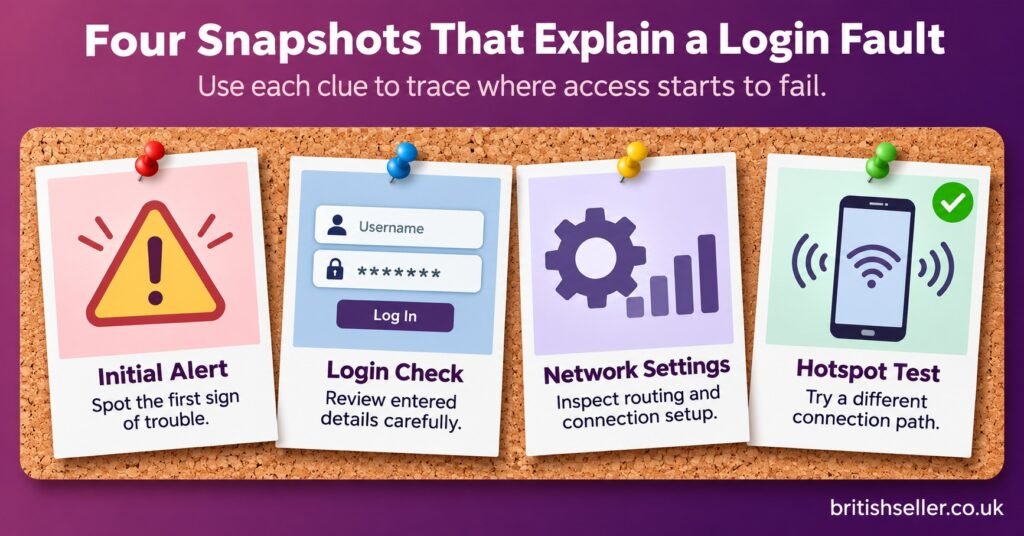
Four Screenshots That Settle Most Cases
Whether you are helping a family member or handling a support ticket, four photos or screenshots usually reveal more than a long description:
- The error message exactly as the app displays it, including any code
- The login screen with the portal address visible and the password covered
- The device’s network or DNS settings screen, showing whether anything is set manually
- The same login attempt on a mobile hotspot, showing whether it succeeded
Ask for them in that order. The first two settle Tests 1 and 2 without any back-and-forth, the third exposes leftover manual settings, and the fourth answers the home-or-provider question in one picture. Never ask anyone to send a password in a message or screenshot; the portal address and username are enough for diagnosis.
When Changing the Resolver Is the Wrong Fix
There are situations where a DNS change looks like a solution but is really avoiding the actual problem.
In the UK, broadband providers block access to certain domains when ordered to do so by the courts, and similar arrangements exist in other English-speaking countries. If a portal fails only on home broadband, and the lookup returns a block notice or no answer, that can be a sign the service is subject to enforcement action. Routing around it is not a troubleshooting step. The right response is to stop and ask whether the service holds the proper distribution rights, since IPTV is simply a delivery technology and its legality depends on licensing. Our guide to legal IPTV providers in the UK explains what to look for.
Provider-side changes are the other common case. When a service moves to new infrastructure, its domain records change, and old answers can linger in caches for a while. Resellers who manage this well announce new portal addresses in advance and expect some customers to need a restart or a fresh address. The steps involved are covered in more depth in this IPTV server migration guide.
Finally, some problems that look like DNS faults are really player problems. If the login works in one app and not another on the same device, the resolver is clearly fine. App-specific fixes are covered in this Smarters Pro troubleshooting walkthrough, and if the login succeeds but playback stalls, the causes are usually bandwidth or server load rather than lookups, which is a separate diagnosis.
Turning the Tests Into a Reseller Support Routine
For anyone running an IPTV reseller business, the value of a fixed sequence is consistency. Every ticket gathers the same evidence, so patterns show up quickly. One customer failing on one device is a settings issue. Ten customers failing on different broadband providers within the same hour is almost certainly a provider-side event, and the right move is to check the provider’s status channel and inform affected customers rather than walking each one through resolver changes.
It also helps to keep the current portal address in one authoritative place, such as the reseller dashboard notes or a pinned message, so that customers are never copying an outdated address from an old chat. When escalating to the provider, include the portal hostname, the lookup result from Test 4, whether the hotspot test passed, and the time of failure. That gives the provider something it can act on. A structured approach to tickets like these is described in our IPTV reseller panel customer support guide.
Frequently Asked Questions
Should I type the portal address into my TV’s DNS settings?
No. The portal address belongs in the IPTV app’s login screen. A television’s DNS fields expect numerical resolver addresses, and entering a portal URL there will usually stop the connection working altogether.
Why does the login work on my phone’s data but not on Wi-Fi?
Mobile data uses a different network and resolver from your home broadband. A pass on data and a failure on Wi-Fi points to the router, its filtering settings, the home resolver or a block applied by the broadband provider.
Do I need to change DNS on every device in the house?
Not for testing. Change it on the single failing device first. Only consider a router-level change once you know the home resolver is genuinely the issue, because a router change affects every device at once.
How long should I wait after a provider changes servers?
It depends on how the provider configured its records and how long resolvers cache them. Some networks see the change within minutes and others take several hours. Full device and router restarts help clear older answers sooner.
Can a VPN or ad-blocker cause DNS errors?
Yes. VPN apps and ad-blocking resolvers both take over name lookups. If either stops responding, or filters a domain it considers suspicious, the IPTV app can fail to find its server. Disabling them temporarily is a quick way to rule them out.
Where to Start Next Time
The most useful habit this IPTV DNS Troubleshooting Guide can leave you with is asking “which DNS?” before changing anything, then letting the hotspot test decide whether the fault is at home or further upstream. Most cases resolve at Test 2 or Test 3, long before any settings need touching. Where a resolver change does fix things, keep a note of the original values so the device can be returned to normal later. And where every test passes except the provider’s own server, the answer is a clear message to the provider, backed by the evidence you have gathered, rather than more changes at home.