Book Appointment Now
IPTV IPv6 vs IPv4 Streaming Issues: A Step-by-Step Fix
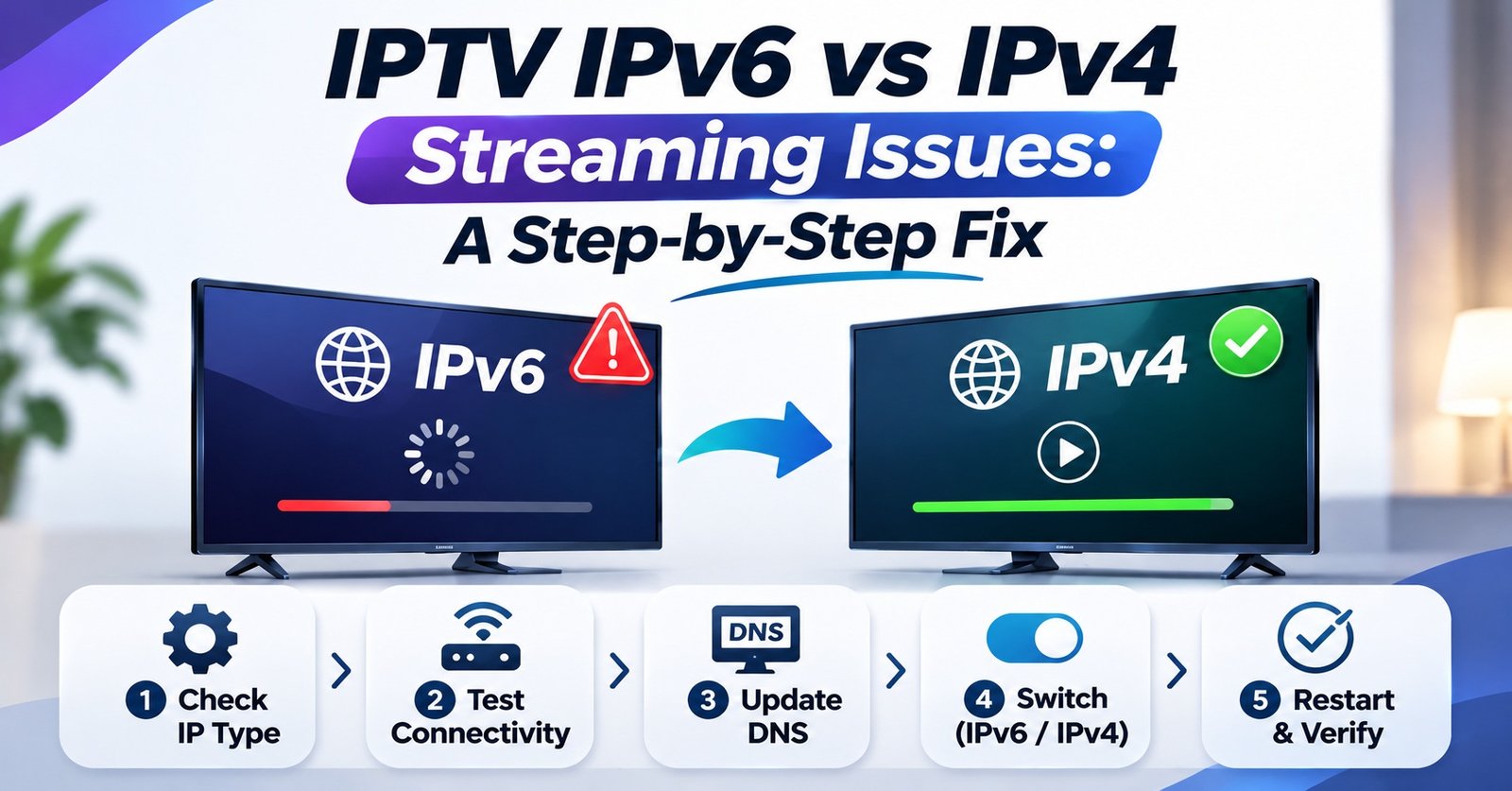
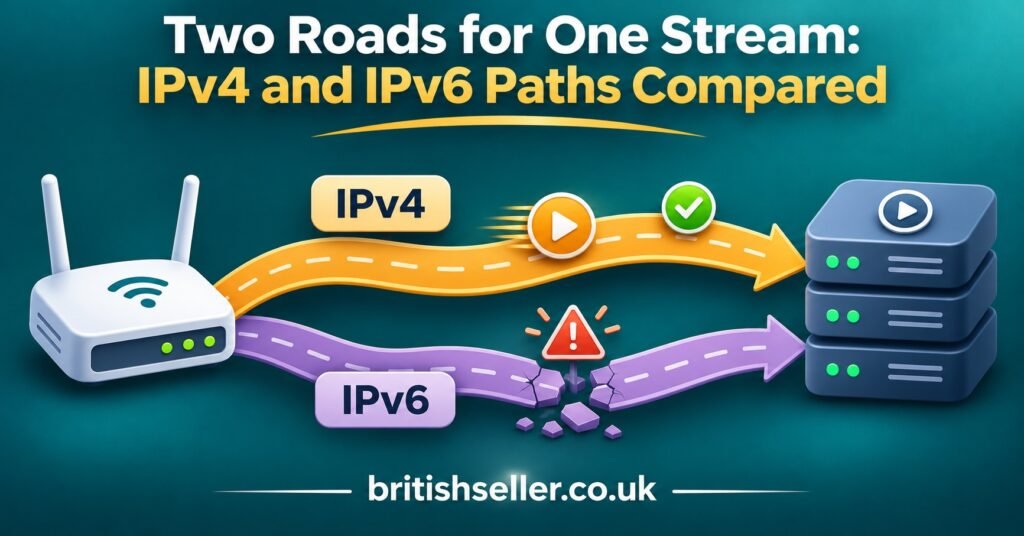
Most IPTV IPv6 vs IPv4 Streaming Issues come from one situation: your home network hands the device an IPv6 address, the device tries IPv6 first, and somewhere between your router and the streaming server that IPv6 path is slower, incomplete or blocked. The quickest first check is to run the same stream on mobile data or a phone hotspot. If it plays cleanly there but stutters, stalls on loading or drops on your broadband, test the connection with IPv6 switched off for that one device before you touch anything else.
Turning IPv6 off is a test, not automatically the cure. If playback becomes stable the moment the device is limited to IPv4, you’ve located the problem in the network path rather than in the app, the playlist or the subscription, and you can decide on a cleaner long-term fix. If nothing changes, IPv6 was never the cause and you should switch it back on, because leaving it disabled hides the real fault and can cause problems for other apps later.
What Changes When a Stream Travels Over IPv6
Many broadband connections in the UK and other English-speaking countries now run in “dual stack” mode, which means your router has both an IPv4 address and an IPv6 address. When an IPTV app asks for a server address, the device looks up two kinds of DNS record: an A record for IPv4 and an AAAA record for IPv6. If both exist, modern operating systems give IPv6 a small head start and fall back to IPv4 only if the IPv6 attempt fails quickly enough to notice.
That fallback logic is where trouble starts. It is designed to catch connections that fail outright. It is not designed to catch a connection that opens successfully over IPv6 and then performs badly. A stream can begin on IPv6, play for twenty seconds and then stall, and the device has no reason to try IPv4 instead.
There’s also a common misunderstanding worth clearing up. Many IPTV portals and reseller panel servers are IPv4-only. If the server has no AAAA record at all, your device will use IPv4 for the stream itself, whatever your router does. In that case IPv6 can still affect you indirectly, through DNS lookups, EPG and logo hosts, app update servers or the way your ISP routes IPv4 traffic, but the video connection is not running over IPv6. Knowing which of these you’re dealing with saves a lot of guesswork.
Four Ways IPv6 and IPv4 Behave Differently for Live Streams
Slow channel changes and long loading circles
When the IPv6 route to a host is poor rather than broken, each new connection pays a small delay before it either succeeds slowly or falls back. Live TV apps open fresh connections constantly: one for the channel list, one for each stream, more for EPG data and channel logos. Customers usually describe this as “it takes ages to load” or “channels hang when I zap”, while speed tests look perfectly healthy.
Streams that start and then freeze
IPv6 handles oversized packets differently from IPv4. Routers along the path are not allowed to split them, so the sending server relies on a “packet too big” message coming back. If a firewall, VPN or tunnel along the way blocks those messages, small packets get through but full-size video packets quietly vanish. The result is a recognisable pattern: the login works, the channel list loads, the picture appears, and then playback freezes once the stream ramps up to full bitrate.
“Account in use” or IP-lock errors
Some services restrict a line to one public address at a time, or count connections by IP. A dual-stack device can appear from an IPv4 address on one request and an IPv6 address on the next. On top of that, many devices use temporary IPv6 “privacy” addresses that change periodically. To a server enforcing one IP per line, this can look like two locations sharing an account, which triggers disconnects or connection-limit messages even though only one person is watching.
Shared IPv4 behind your provider
Some ISPs now deliver IPv4 through a shared address tunnelled over IPv6, a method often called DS-Lite, or through carrier-grade NAT. You still “have IPv4”, but you share a public address with other households. Streaming generally works, yet IP-based limits, blocks applied to that shared address, or congestion at the provider’s translation equipment can all appear as IPv4 problems even though the root cause is how your ISP delivers IPv4 over its IPv6 network. Disabling IPv6 on your own devices will not change this one, and recognising it early prevents a lot of wasted troubleshooting.
IPTV IPv6 vs IPv4 Streaming Issues: A Repeatable Seven-Step Diagnostic
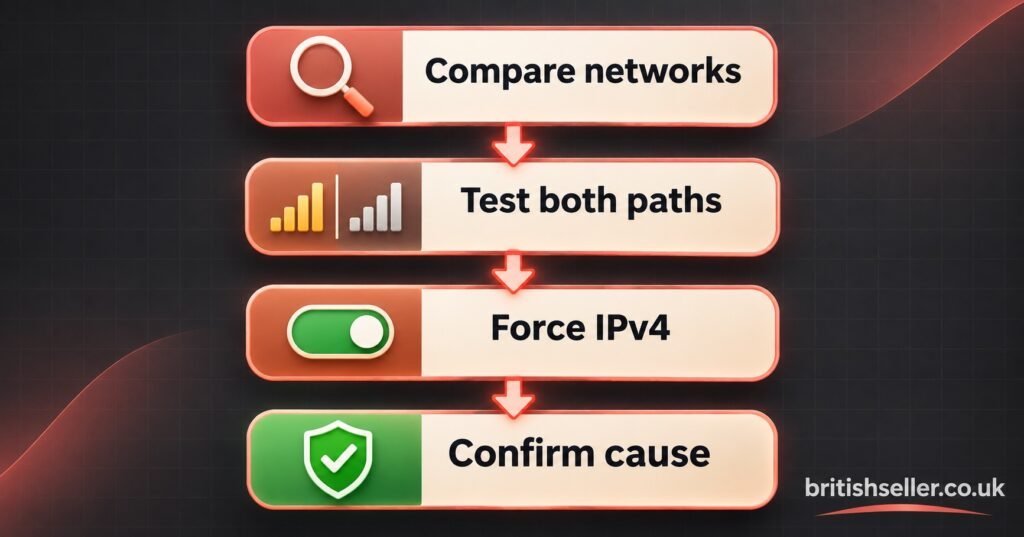
Run these steps in order and write down the result of each one. The order matters because each step removes one possibility before you change any settings. Wherever a screenshot is mentioned, it’s worth capturing, because it turns a vague “it doesn’t work” into evidence a support team can act on.
Step 1: Confirm the symptom on a second network
Play the same channel on the same device using a phone hotspot, or play it on a phone using mobile data. Mobile networks are frequently IPv6-capable too, so this isn’t a pure IPv4 test, but it does take your router and your broadband provider out of the picture.
Expected outcome: if the stream is stable on the hotspot and unstable at home, the problem is in the home network or the broadband path. If it fails on both, look first at the app, the device or the service itself.
Screenshot to keep: the app’s error message or playback info screen on both networks.
Step 2: Check whether the device actually has IPv6
Open the device’s network status page. Android TV boxes, smart TVs and streaming sticks normally show the IP addresses under the network or “About” section. An address containing colons (UK and European ISP addresses commonly begin with 2a, while North American ones often begin with 2600 or 2601) is a public IPv6 address. An address starting with fe80 is only a local link address and does not mean the device has working IPv6 internet access.
Expected outcome: no public IPv6 address means IPv6 is not your stream’s problem, and you can skip to checking Wi-Fi quality, DNS and the service. A public IPv6 address means continue.
Screenshot to keep: the network status page showing both address types.
Step 3: Find out whether the portal supports IPv6 at all
On a Windows or Mac computer on the same network, run a DNS lookup for the portal hostname from your login details, for example nslookup -type=AAAA portal-hostname on Windows, or dig AAAA portal-hostname on a Mac. Use only the hostname, never your username or password.
Expected outcome: no AAAA answer means the stream connection itself is IPv4-only, so focus on DNS, EPG hosts and your ISP’s IPv4 delivery. An AAAA answer means the stream can travel over IPv6 and Step 4 becomes the key test.
Step 4: Compare the two paths directly
On that same computer, run ping -4 portal-hostname and then ping -6 portal-hostname (on a Mac, use ping and ping6). Some servers ignore ping, so a timeout on both is not conclusive. What you’re looking for is a difference between the two results.
Expected outcome: IPv4 replies steadily while IPv6 times out, shows packet loss or has noticeably higher response times. That points firmly to a weak IPv6 route between your ISP and the server.
Screenshot to keep: both ping results in one window.
Step 5: Force IPv4 on one device only
Limit only the device that’s having trouble to IPv4, using the device notes in the next section. Leave the router alone for now, because a router-wide change affects every phone, laptop and console in the house.
Expected outcome: if the stream becomes stable within a normal viewing session (try at least one full live programme, including a channel change or two), IPv6 was the cause.
Step 6: Test a router-level change if the device has no setting
Many streaming sticks and TVs have no IPv6 toggle. In that case, check your router’s IPv6 or LAN settings. Some routers let you disable IPv6 on the guest network or on one band only, which is a cleaner test than switching it off for the whole home.
Expected outcome: as in Step 5. Note the original setting before changing it so you can restore it exactly.
Step 7: Reverse the change if nothing improved
If forcing IPv4 made no difference, switch IPv6 back on. You’ve now ruled it out, and the next checks are Wi-Fi signal strength, DNS behaviour, device storage and the service itself.
Expected outcome: your network is back to its original state, with one cause eliminated and a written record of every result.
Once you have results from Steps 3 and 4, this summary helps you read them together.
| What you found | What it most likely means |
|---|---|
| No public IPv6 on the device | IPv6 isn’t involved; check Wi-Fi, DNS and the service |
| Portal has no AAAA record | Stream runs on IPv4; look at DNS, EPG hosts or shared ISP IPv4 |
| IPv6 ping fails, IPv4 ping works | Weak IPv6 route; force IPv4 on the device and report it |
| Freezes start after the picture appears | Likely IPv6 packet-size problem along the path |
| Disconnects with “too many connections” | Address switching between IPv4 and IPv6 on an IP-locked line |
Pro tip: Run Step 4 at the time the buffering normally happens, such as a busy weekend evening. IPv6 route problems are often worst at peak times, and a test at 10am can give a misleadingly clean result.
Forcing IPv4 Safely on Common Devices
Menu names below vary by model, firmware version and region, so treat them as directions rather than exact paths. If a menu isn’t there, the device almost certainly has no user-facing IPv6 setting, and the router is your option.
Windows computers
Avoid unticking IPv6 entirely if you can. Windows supports a setting that makes it prefer IPv4 while keeping IPv6 installed, and fully disabling IPv6 can cause slow start-ups or problems with some system features. For a quick test, untick “Internet Protocol Version 6 (TCP/IPv6)” in the adapter properties, then restore it once you have your answer. For a longer-term preference, use the supported “prefer IPv4 over IPv6” setting rather than leaving IPv6 switched off.
Mac computers
Open the network settings, select the active connection, open its details, and set the IPv6 configuration to “Link-local only”. Depending on your macOS version, this option sits under TCP/IP or under the connection’s details panel, and on some versions it’s only shown for wired connections.
Samsung and LG smart TVs
Some Samsung models show an IPv6 option under the network menu’s expert settings. Some LG models show IPv6 under the advanced settings of the Wi-Fi or wired connection. Many recent models of both brands have removed the option completely, so don’t spend long searching.
Android TV boxes, Google TV and Fire TV devices
Standard Android TV, Google TV and Fire TV software generally gives users no IPv6 switch. Some third-party Android boxes add one in their own network settings. For most of these devices, the router-level test in Step 6 is the practical route.
The router itself
Look for menu labels such as “IPv6”, “IPv6 Connection Type”, “DHCPv6” or “IPv6 LAN”. On ISP-supplied routers the option may be hidden, locked or reset by firmware updates. Contact your broadband provider if it isn’t available, and mention that you’ve identified a specific IPv6 streaming problem rather than a general speed issue. That’s a far more useful report than “my internet is slow”.
If you’ve confirmed it isn’t IPv6 at all, the next most common culprit is name resolution, and our step-by-step IPTV DNS troubleshooting guide picks up exactly where this diagnostic stops. Wider causes of stuttering, such as Wi-Fi interference and device storage, are covered in our practical IPTV buffering solutions.
Handling IPv6 Tickets as an IPTV Reseller
For an IPTV reseller, IPv6 complaints are awkward because the customer sees “your service keeps freezing”, while the cause often sits in their own router or their broadband provider’s network. Arguing that point rarely helps. What works better is asking for evidence in a fixed order and replying with one change at a time.
A UK IPTV reseller handling these tickets should ask for three things before suggesting fixes: whether the problem also happens on a phone hotspot, a screenshot of the device’s network status page, and the time of day the buffering usually appears. Those three answers alone tell you whether to start the IPv6 checks or look elsewhere, and they stop the conversation turning into a list of random suggestions. If you’re building a support process around this, our guide to structured IPTV reseller customer support explains how to turn repeat questions into reusable replies.
Be careful with IP-locked lines. If a customer sees connection-limit errors and the device is dual stack, check the line’s active connections in the panel before assuming they’re sharing the account. An IPTV panel reseller who sees the same line appearing from two addresses at once, one in IPv4 format and one in IPv6 format, is probably looking at one device switching protocols rather than two households. Accusing a customer of sharing on that basis damages trust you’ll struggle to rebuild. Knowing how your IPTV reseller panel displays active connections makes this judgement much easier.
Two boundaries matter here. A reseller can explain these steps, but shouldn’t log into a customer’s router remotely or ask for their broadband account credentials. And any IPTV seller should remember that network troubleshooting only applies to legitimately licensed services: a clean IPv4 path improves delivery, but it has nothing to do with whether the content being delivered is authorised.
Getting to the Right Answer, Not Just a Quick Fix
IPTV IPv6 vs IPv4 Streaming Issues are rarely about one protocol being “better”. They’re about whether the particular route between your home and one server works properly on each protocol. The diagnostic above tells you which situation you’re in before you change anything, and that matters, because switching IPv6 off on a hunch can hide the real problem while creating new ones elsewhere on your network.
If forcing IPv4 fixed your stream, keep the change as narrow as possible, ideally on the one device, and pass your results to your broadband provider so the underlying route can be fixed. If it didn’t help, switch IPv6 back on and move to DNS, Wi-Fi and device checks with one cause already ruled out. Device menus and router firmware change frequently, so if a setting described here isn’t on your model, rely on the tests rather than the menu path. The test results are what tell you the cause.
Questions That Come Up After the Diagnostic
Is it safe to leave IPv6 disabled permanently?
On a single streaming device used only for TV, it’s generally low risk, though you lose any future benefit as more services move towards IPv6. On a router, it affects every device in the home, and some ISPs depend on IPv6 internally, so a router-wide change can create other problems. A device-level setting is always the better long-term choice where one exists.
Will disabling IPv6 make my stream faster?
Not in terms of raw speed. It can make playback more stable when the IPv6 route is the weak link, which feels faster because channels load properly. If both paths are healthy, you won’t notice any difference.
Why does a speed test look fine when IPTV buffers?
Speed test servers are usually close to your ISP and are often reached over a well-maintained route. Your IPTV server may sit on a completely different path, and on IPv6 that path can be worse than the one your speed test measures.
Does a VPN cause IPv6 streaming problems?
It can. Some VPNs only tunnel IPv4 and either block or leak IPv6 traffic, and VPN tunnels reduce the maximum packet size, which makes the freezing pattern described earlier more likely. Test without the VPN as part of Step 1 if one is running.
My device has no IPv6 setting and I can’t change the router. What now?
Report the specific result to your broadband provider: that IPv4 is stable and IPv6 to one particular host is failing or slow at certain times. A wired Ethernet connection is also worth trying, as some IPv6 problems only appear on certain Wi-Fi mesh or extender setups.